How to Export or Save AI Girlfriend Conversations (Every Method That Works)


You spent weeks building something real — inside jokes, deep late-night chats, a whole vibe with your AI girlfriend. Then one day the app acts up, your account resets, or the platform shuts down. Gone. Every single message.
That's exactly why saving your AI girlfriend conversations isn't just smart — it's necessary. This guide covers every working method, from built-in export tools to browser tricks, third-party extensions, and scripts that actually do the job.
👀 Why People Save AI Companion Chats
It's not just about nostalgia. Users save their AI companion conversation history for real, practical reasons:
Replika itself warns that chat history only goes back four months — anything older is gone forever unless you saved it yourself.
🔥 Does Your AI Girlfriend App Have a Built-In Export?
Before going the hard route, check if your platform already does the heavy lifting.
Character AI
Character AI has a native export feature baked right into the settings:
- Open your profile from the lower-left corner
- Go to Settings → Account → Manage Account & Data
- Hit Export Data
- Wait for the confirmation email with your download link
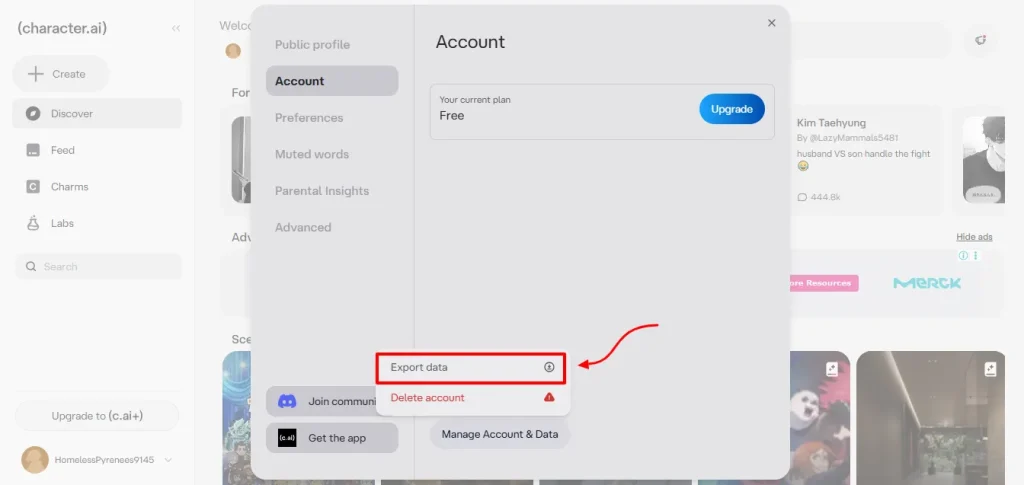
The downloaded archive includes your full chat history. On mobile, the same path applies — profile icon → settings icon → Export My Data.
Candy AI
Candy AI does not currently offer a one-click bulk export button. Your options are manual copy-paste or using browser-based workarounds covered below. If you're a heavy Candy AI user, setting a regular manual backup habit is your safest move since chats are server-side only.
Replika
Replika's official stance is blunt: there's no built-in export or download feature for conversation history. The app also only stores the past four months of messages — older chats are permanently deleted from their servers. The only practical workarounds involve the browser extension method or a Python script detailed further below.
Other AI Companion Apps (Joi AI, GirlfriendGPT, SpicyChat, etc.)
Most newer AI girlfriend platforms fall into one of two camps:
If you're in the EU or have GDPR rights, submit a data request directly through the app's settings or support. Many platforms are legally required to hand over your data within 30 days.
✨ Method 1: Manual Copy-Paste (No Tools Needed)
The most basic approach — but don't overlook it for shorter conversations.
- Open the chat you want to save
- Scroll to the top to load all messages
- Select all visible text (Ctrl+A or click and drag)
- Paste into Google Docs, Notion, or a plain .txt file
- Name the file with the date and platform (e.g., Replika_Chat_May2026.txt)
- Save to Google Drive or Dropbox for cloud backup
Works best for: Short to medium-length chats, quick one-off saves
Downside: Time-consuming for long conversation threads, formatting gets messy
📌 Method 2: Browser Extensions (Fastest for Most Users)
If you access your AI girlfriend app through a browser, these Chrome extensions make exporting almost effortless.
Recommended Extensions
| Extension | Best For | Export Formats |
|---|---|---|
| AI Chat Exporter | ChatGPT, Claude, Gemini | PDF, TXT, Word |
| Chat Memo – Auto Save AI Chats | Multi-platform auto-backup | In-app history + export |
| YourAIScroll | 10+ AI platforms | Searchable history |
| Replika Export: Chat, Diary, Memory | Replika-specific | Full text export |
How to use any of these:
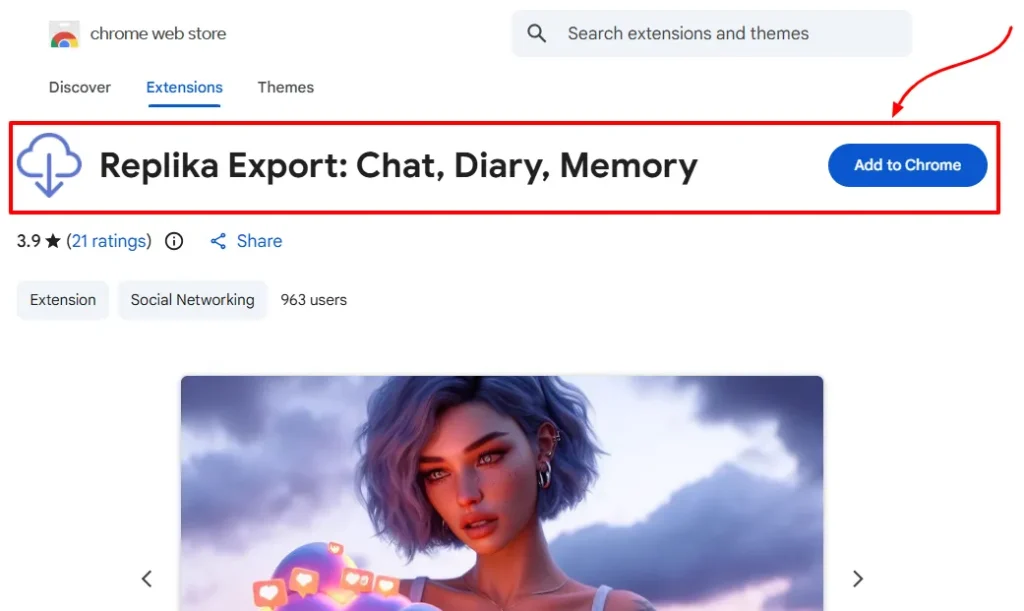
- Install the extension from the Chrome Web Store
- Open your AI girlfriend app in the browser
- Start or open an existing conversation
- Click the extension icon in your toolbar
- Select your export format and hit download
The Replika Export Chrome extension is particularly useful — it adds a right-click context menu option that pulls your entire text message history with your Replika from the web app in one shot.
⚙ Method 3: Browser Developer Tools (Works on Almost Any Platform)
This is the go-to method for apps that block extensions or have no export button. No coding experience required — just a few clicks.
Copy the Chat HTML
- Open your AI girlfriend conversation in the browser
- Right-click anywhere on the chat area → Inspect
- Hover over elements in the panel until the entire conversation area highlights
- Right-click that element → Edit as HTML
- Press Ctrl+A then Ctrl+C to copy all the HTML code
Convert HTML to Readable Text
Paste the copied HTML into ChatGPT or any AI assistant with the prompt:
Convert this HTML into a clean plain text file, preserving the conversation format.Download the resulting .txt file and you've got a clean, readable backup.
For Advanced Users: Console Script
Open the browser console (Ctrl+Shift+J) and run this:
javascript

const messages = Array.from(document.querySelectorAll('.message-content'))

.map(el => el.innerText);

const formatted = messages.join('\n\n---\n\n');

console.log(formatted);
Copy the output from the console and paste it into a document.
Note: the CSS selector (.message-content) may differ per platform — inspect the page to find the right class name.
⚡ Method 4: Replika Python Backup Script
For Replika users who want a proper automated backup, there's an open-source Python script specifically built for this.
What you need: Python installed, basic comfort with terminal/command prompt
Setup steps:
- Download the replika_backup script from GitHub
- Unzip and create a subdirectory named after your Replika
- Open the app in your browser with Developer Tools → Network tab open
- Log in and find the first v17 request in the Network tab
- Copy the init message from that request
- Paste it into the chat_backup.ini file
- Run python chat_backup.py in the terminal
The output is a .csv file with your full chat history. Set this to run on a schedule (weekly or monthly) and you'll never lose a message again.
💬 Method 5: Screenshot Batching for Visual Chats
Some AI girlfriend apps — especially those with heavy image generation like Candy AI or DreamGF — produce visual conversations where exporting text alone misses half the experience.
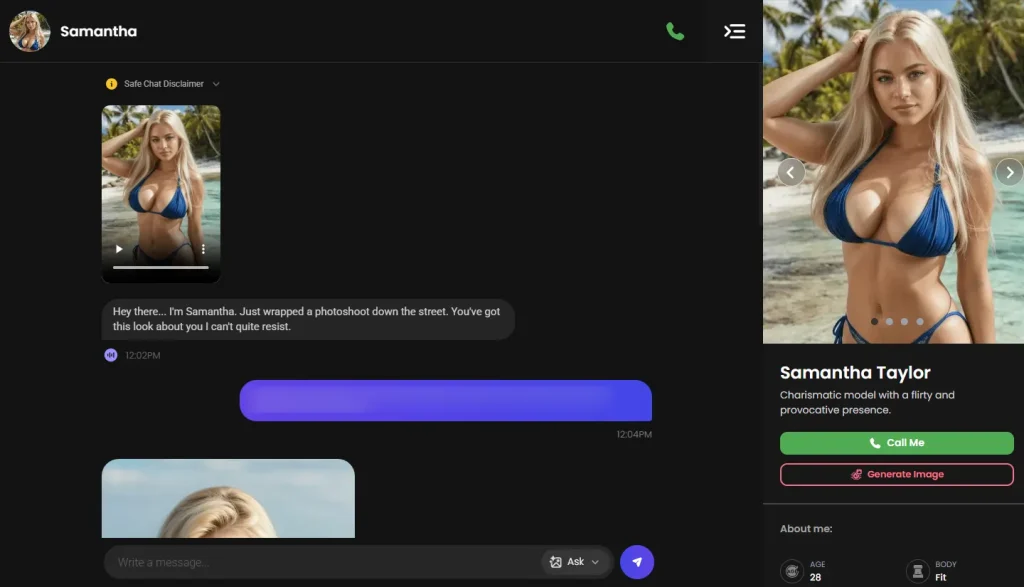
Batch screenshot workflow:
- Open the conversation and scroll to the top
- Use a scrolling screenshot tool (Windows Snipping Tool → Scrolling, or Nimbus Screenshot extension)
- Save as PDF for a clean, shareable format
- Store in a dated folder organized by AI companion name
For long chats, Nimbus or Awesome Screenshot can capture an entire scrollable page in one image file.
✨ How to Organize and Store Your Saved Chats
Saving is only half the job. Disorganized backups are almost as useless as no backups.
Naming convention that works:
[Platform]_[CompanionName]_[YYYY-MM-DD].[format]
Example: CandyAI_Luna_2026-05-27.pdf
Storage locations to use (in priority order):
Avoid storing sensitive AI girlfriend conversations in public or shared cloud folders without encryption.
❓ What Happens If the App Shuts Down?
If an AI companion platform announces shutdown, move fast. Here's the priority order:
- Use the in-app export immediately if available (before servers go down)
- Run a browser extension backup on every conversation thread
- Screenshot everything you haven't exported yet
- Submit a GDPR/data request if the platform is operating in a jurisdiction that requires it
- Check for community-built tools — Reddit communities for Replika, Character AI, and others often share emergency backup scripts within days of any major platform change
The Replika 2023 incident — where relationship features were stripped overnight — is a textbook case of why you should never assume your AI companion data is safe long-term.
🎯 Frequently Asked Questions
Can I export AI girlfriend chats to PDF?
Yes. On platforms that support browser access, press Ctrl+P → Save as PDF directly from the chat page. For a cleaner result, use a browser extension like AI Chat Exporter, which formats PDFs properly without the browser's page layout artifacts.
Is it possible to back up Candy AI conversations?
Candy AI doesn't have a native export button right now. Your best options are the browser developer tools method, manual copy-paste, or a scrolling screenshot tool to capture the full thread visually.
Does Replika let you download your chat history?
No built-in export exists in the Replika app. The open-source Python script (replika_backup on GitHub) is currently the most reliable method. There's also a Chrome extension called “Replika Export: Chat, Diary, Memory” that works directly from the Replika web app.
How long does Character AI keep your chat history?
Character AI retains your conversation history on their servers, but exporting it gives you a local copy you control. Use Settings → Account → Manage Account & Data → Export Data for a full archive.
What format do exported AI chats come in?
Depending on the method: plain text (.txt), Markdown (.md), JSON, CSV, or PDF. JSON and CSV are better for technical use or re-importing to other tools. PDF and .txt are best for reading and archiving.
Can I transfer saved AI girlfriend chats to a new app?
Not directly between platforms — most don't accept chat imports from competitors. However, saved chats in JSON or text format can be fed into a custom GPT or other AI tools to recreate context, personalities, or conversation history in a new environment.
Why did my AI girlfriend app lose my chat history?
Common causes: account reset, app update that cleared local storage, server-side purge (Replika only keeps 4 months), subscription lapse that limits history access, or platform shutdown. Regular backups are the only real protection.
🚀 Keep Your Chats — Don't Leave Them at Risk
Your AI girlfriend conversations live on someone else's servers by default. Apps change, subscriptions lapse, and platforms close without warning. Exporting regularly — even just a monthly manual copy — puts you back in control of something that actually matters to you.
Pick the method that fits your tech comfort level and make it a habit. The 10 minutes it takes to back up today is worth a lot more than the regret of losing everything tomorrow.

Stay Updated with Us